> ## Documentation Index
> Fetch the complete documentation index at: https://docs.trilo.chat/llms.txt
> Use this file to discover all available pages before exploring further.
# Welcome to Trilo
> Your all-in-one workspace for team collaboration, knowledge management, and AI-powered productivity
## What is Trilo?
Trilo is a comprehensive collaboration platform that brings together everything your team needs to work effectively. Combine your knowledge base, tasks, calendar, and team communication in one unified workspace—with AI coworkers to help you get more done.
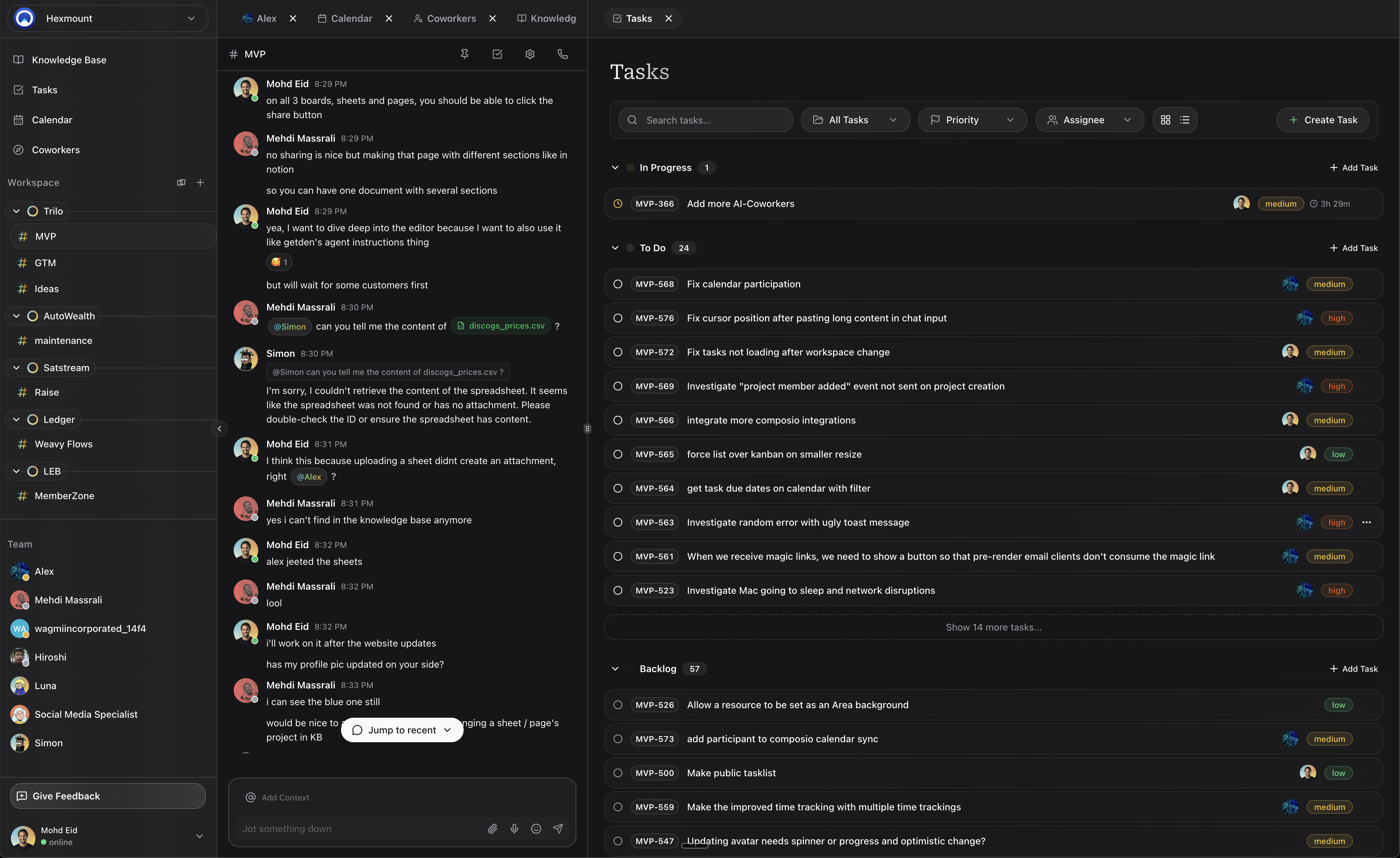 Create and organize documents, spreadsheets, and whiteboards in one place.
Manage work with powerful task tracking, assignments, and multiple views.
Schedule events, sync with Google Calendar, and set up booking pages.
Communicate in real-time with project channels and direct messages.
## Why Teams Choose Trilo
### Everything in One Place
Stop switching between apps. Trilo combines your documentation, project management, scheduling, and communication into a single, cohesive workspace.
### AI-Powered Productivity
Work alongside AI coworkers that can help you draft content, analyze data, manage tasks, and more. They're integrated directly into your workflow, not bolted on as an afterthought.
### Real-Time Collaboration
Edit documents together, see who's online, and communicate instantly. Every change syncs in real-time across all devices.
### Organized by Design
Use workspaces, areas, and projects to create a structure that matches how your team actually works. Find what you need, when you need it.
## Core Concepts
Understanding these key concepts will help you get the most out of Trilo:
A workspace is your team's home base. It contains all your projects, resources, and team members. Most teams have one workspace, but you can create multiple for different organizations or clients.
Areas are top-level categories within your workspace. Use them to organize projects by department, team, or initiative. For example: "Engineering," "Marketing," or "Q1 Launch."
Projects live within areas and contain your actual work—tasks, knowledge base resources, calendar events, and chat messages. Each project has its own channel and settings.
Resources are the content you create in your knowledge base. This includes pages (documents), spreadsheets, and boards (whiteboards). Resources can be organized within projects or shared across your workspace.
AI coworkers are intelligent assistants that can help with various tasks. You can chat with them, assign them work, and even create custom coworkers tailored to your team's needs.
## Getting Started
Ready to dive in? Here's how to get started:
Sign up at [app.trilo.chat](https://app.trilo.chat) with your email or Google account.
Create your first workspace and invite your team members.
Set up a project within an area to start organizing your work.
Try creating a document, adding tasks, or chatting with an AI coworker.
Follow our step-by-step quickstart to set up your workspace in minutes.
## Platform Availability
Trilo is available on:
* **Web**: Access from any modern browser at [app.trilo.chat](https://app.trilo.chat)
* **Desktop**: Native apps for macOS and Windows
* **Mobile**: iOS and Android apps for work on the go
Get Trilo on all your devices.
## Explore Trilo Features
Dive deeper into what Trilo can do for your team:
Create docs, spreadsheets, and whiteboards.
Track work with multiple views and AI assistance.
Schedule events and sync external calendars.
Communicate with channels, DMs, and voice calls.
Get help from intelligent AI assistants.
Connect 100+ apps like GitHub, Slack, and Gmail.
Create and organize documents, spreadsheets, and whiteboards in one place.
Manage work with powerful task tracking, assignments, and multiple views.
Schedule events, sync with Google Calendar, and set up booking pages.
Communicate in real-time with project channels and direct messages.
## Why Teams Choose Trilo
### Everything in One Place
Stop switching between apps. Trilo combines your documentation, project management, scheduling, and communication into a single, cohesive workspace.
### AI-Powered Productivity
Work alongside AI coworkers that can help you draft content, analyze data, manage tasks, and more. They're integrated directly into your workflow, not bolted on as an afterthought.
### Real-Time Collaboration
Edit documents together, see who's online, and communicate instantly. Every change syncs in real-time across all devices.
### Organized by Design
Use workspaces, areas, and projects to create a structure that matches how your team actually works. Find what you need, when you need it.
## Core Concepts
Understanding these key concepts will help you get the most out of Trilo:
A workspace is your team's home base. It contains all your projects, resources, and team members. Most teams have one workspace, but you can create multiple for different organizations or clients.
Areas are top-level categories within your workspace. Use them to organize projects by department, team, or initiative. For example: "Engineering," "Marketing," or "Q1 Launch."
Projects live within areas and contain your actual work—tasks, knowledge base resources, calendar events, and chat messages. Each project has its own channel and settings.
Resources are the content you create in your knowledge base. This includes pages (documents), spreadsheets, and boards (whiteboards). Resources can be organized within projects or shared across your workspace.
AI coworkers are intelligent assistants that can help with various tasks. You can chat with them, assign them work, and even create custom coworkers tailored to your team's needs.
## Getting Started
Ready to dive in? Here's how to get started:
Sign up at [app.trilo.chat](https://app.trilo.chat) with your email or Google account.
Create your first workspace and invite your team members.
Set up a project within an area to start organizing your work.
Try creating a document, adding tasks, or chatting with an AI coworker.
Follow our step-by-step quickstart to set up your workspace in minutes.
## Platform Availability
Trilo is available on:
* **Web**: Access from any modern browser at [app.trilo.chat](https://app.trilo.chat)
* **Desktop**: Native apps for macOS and Windows
* **Mobile**: iOS and Android apps for work on the go
Get Trilo on all your devices.
## Explore Trilo Features
Dive deeper into what Trilo can do for your team:
Create docs, spreadsheets, and whiteboards.
Track work with multiple views and AI assistance.
Schedule events and sync external calendars.
Communicate with channels, DMs, and voice calls.
Get help from intelligent AI assistants.
Connect 100+ apps like GitHub, Slack, and Gmail.